|
The parts are under R20 and a trip to your local electronics store should sort you out in no time.
The parts needed are available at most electronics distributors (Communica etc.), alternatively you can buy everything online from sites like www.communica.co.za or za.rs-online.com.
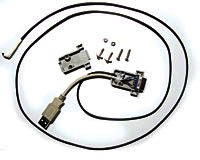
You need the following:
• Female DB9 Connector, otherwise known as a serial connector
• Serial connector enclosure
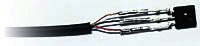
• An IR receiver module, ask the shop to label the pins since these differ for different units or look it up on the web if you’re buying online.
• A 4.7K resistor
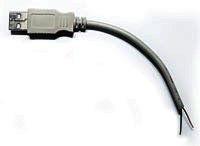
• A USB cable scavenged from an old mouse or keyboard. We’ll be using the USB plug still attached to about 10 cm of cable and about one meter of the wire.
Tools needed:
• A soldering iron
• Screwdrivers and a glue gun to get it all neat
Making the remote
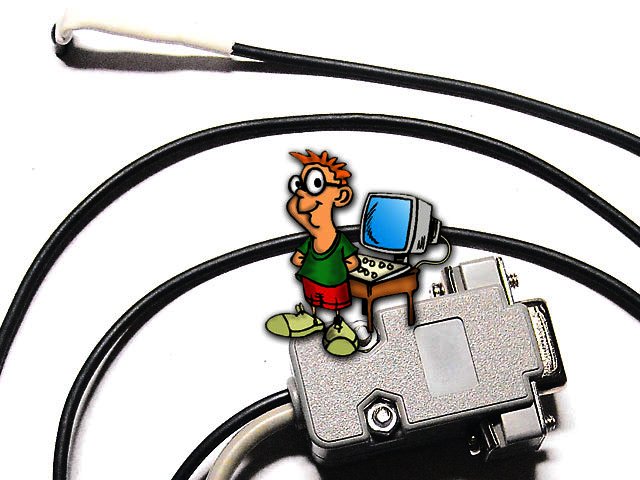
Firstly attach about a meter of cable to each pin of your receiver. Strip some plastic from the end of the USB cable and cut all wires except black and red, connect the black wire to the ground of your receiver (this is why you asked them to label the pins) and to pin 5 on the serial connector, connect the red wire to the positive terminal of your receiver and to one end of the resistor. Connect the other end of the resistor to the output of your receiver and to pin 1 on the connector. That’s it, we’re done.
We’ll be using uICE available at www.mediatexx.com to control the receiver, it’s about a 4 MB download. Plug in both connectors and fire up the software. Select “LIRC Basic Device” in the “Device Selection” dropdown box. Under the “Hardware Setup” tab select the com port you plugged the device into, this will be COM1 for most. Right click on the commands area and select “New Remote Control”, right click on the new remote and select “Learn Single Button”. Name the button and press the button on the remote until the “Learn Another” button activates, press it and continue naming until all buttons have been recognised.
Under the “Actions” tab, right click on your remote and select “New Application” here you can select a number of supported applications from Winamp to Windows Media Player. Right click on an action supported for the program and select “Rename Command”, from the drop down box select one of the names you assigned to a remote button. When you're done select “Apply” and you’re ready to start using your remote. [MS]
|
 How to make a Matrix themed keyboard
 How to supercharge your iPod
 How to fix your iPod
 Logitech Pebble 2 Combo
 Samsung Galaxy S4 Zoom - white
.png-2.jpg) Is the mobile virtual network operator market already overcrowded?
Is the mobile virtual network operator market already overcrowded?-2.jpg) As World Cup and Springboks excitement drives South Africans online, courier sca...
As World Cup and Springboks excitement drives South Africans online, courier sca... Quick Review: Tecno Spark10 5G
 Samsung Galaxy S4 Zoom (black)